Keyword research often spans several Semrush tools, so the keywords you find end up scattered across them. Saved Keywords collects them in lists, with metrics, tags, and filters, so you don't have to repeat your research. From a list, send keywords to Position Tracking or use them to generate content.
Understanding Saved Keywords
Use Saved Keywords to:
- Keep the keywords you find across Semrush in lists you return to
- Find the keywords in a list with the highest search volume or the lowest difficulty
- Narrow a list by search intent, topic, or subtopic
- Group keywords with tags and see which ones you've already sent to Position Tracking or used for content
- See which domains rank at the top of the search results for a keyword
Accessing Saved Keywords
Go to SEO > Saved Keywords.
If you have lists, the page shows all of them. To open a list, click its name.
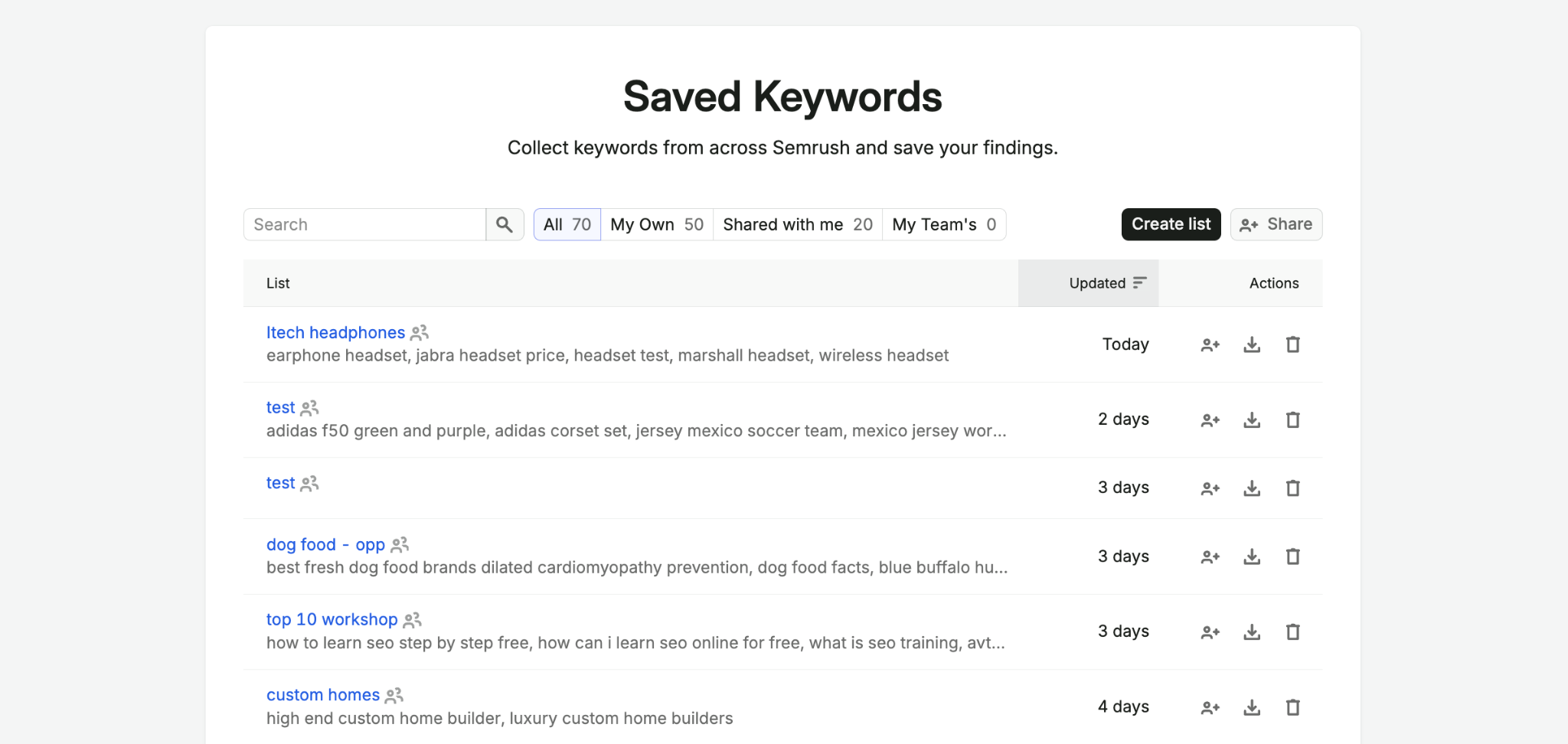
If you don’t have any lists yet, create a list manually or send keywords from Keyword Magic Tool.
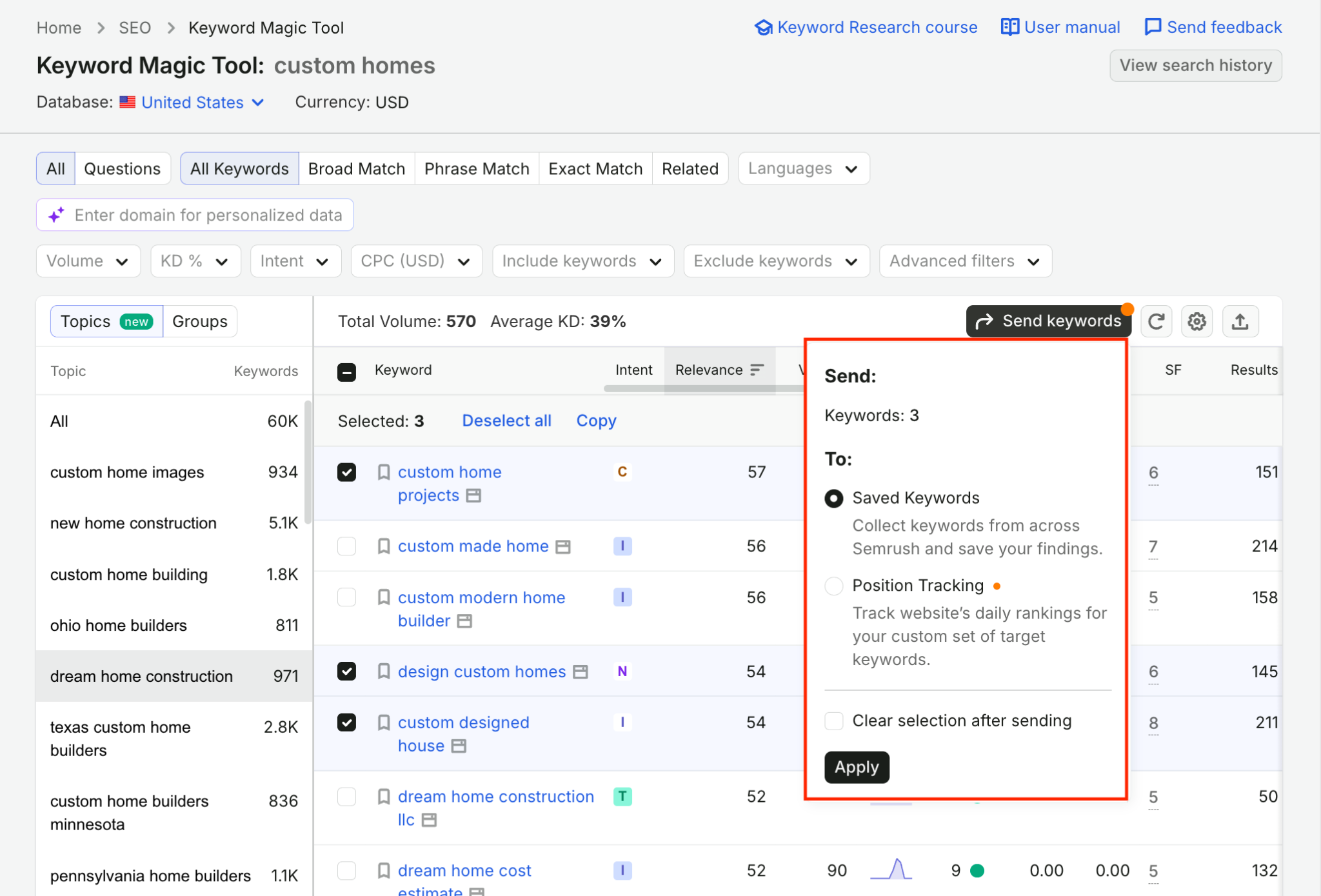
To send keywords to a list from Keyword Magic Tool, select them, click Send keywords, select Saved Keywords, and click Apply.
Key metrics and visualizations
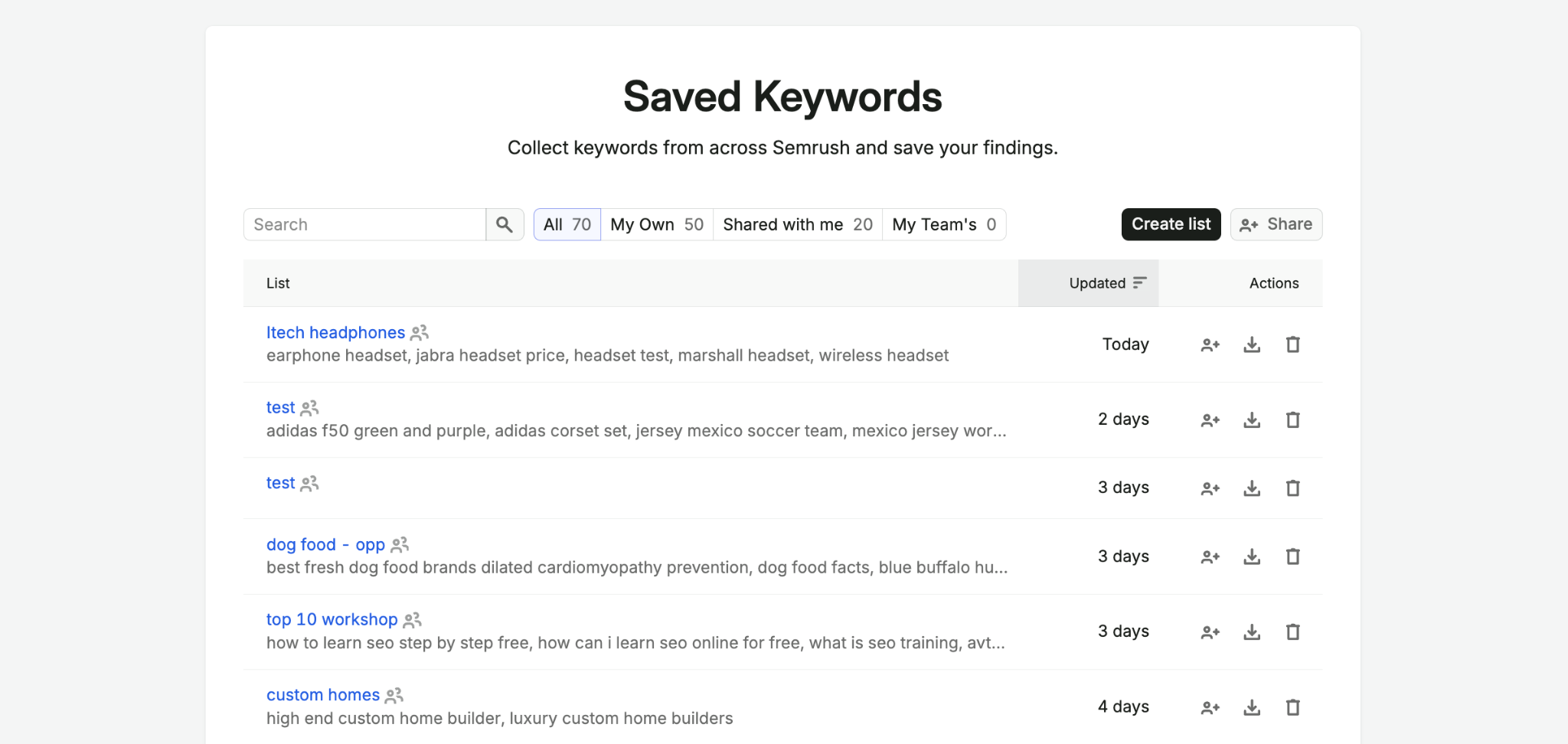
Saved Keywords shows all your keyword lists on 1 page.
Use All, My Own, and Shared with Me to switch between every list, the lists you created, and the lists others shared with you.
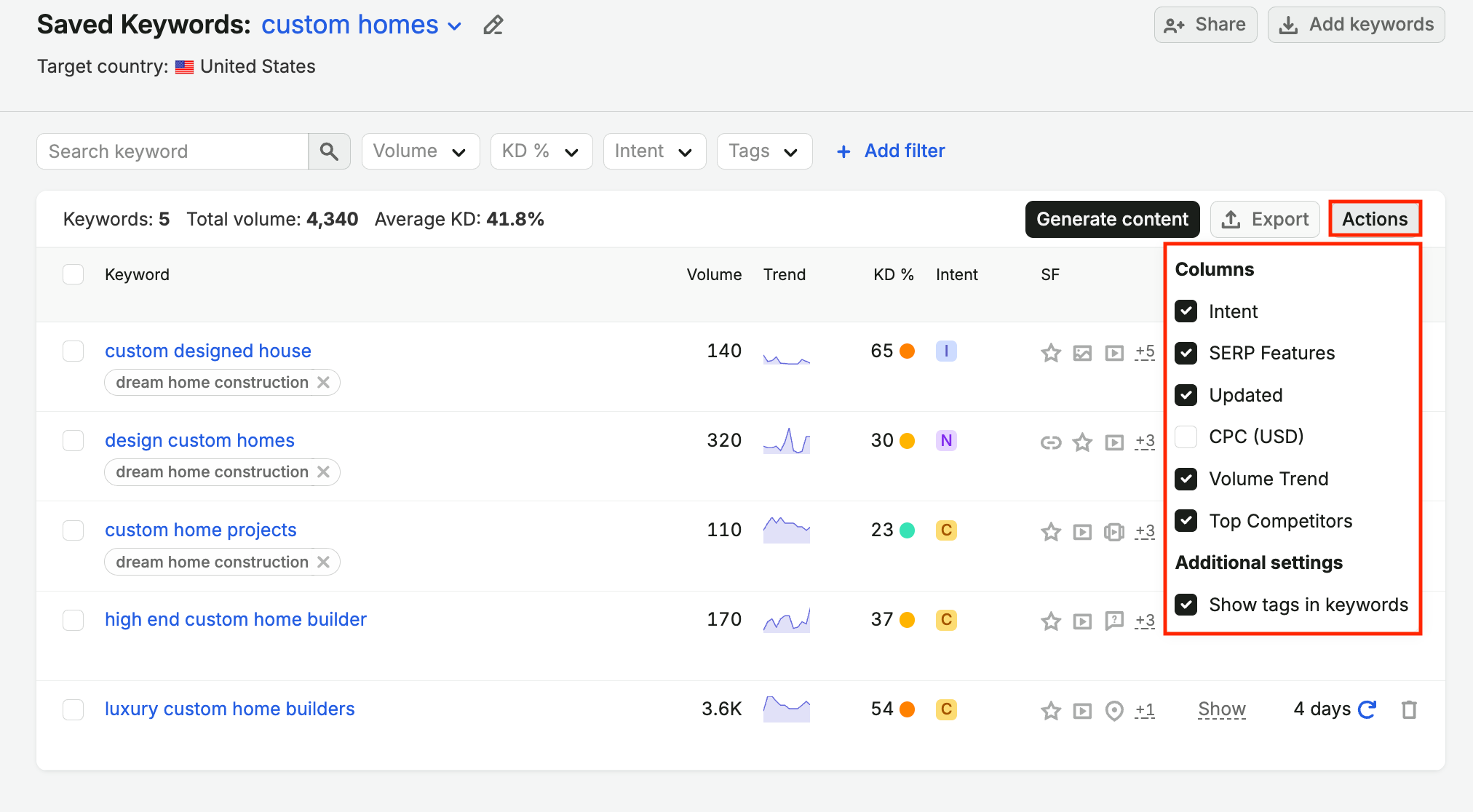
When you open a list, the top of the page shows the number of keywords in it, their total search volume, and their average Keyword Difficulty.
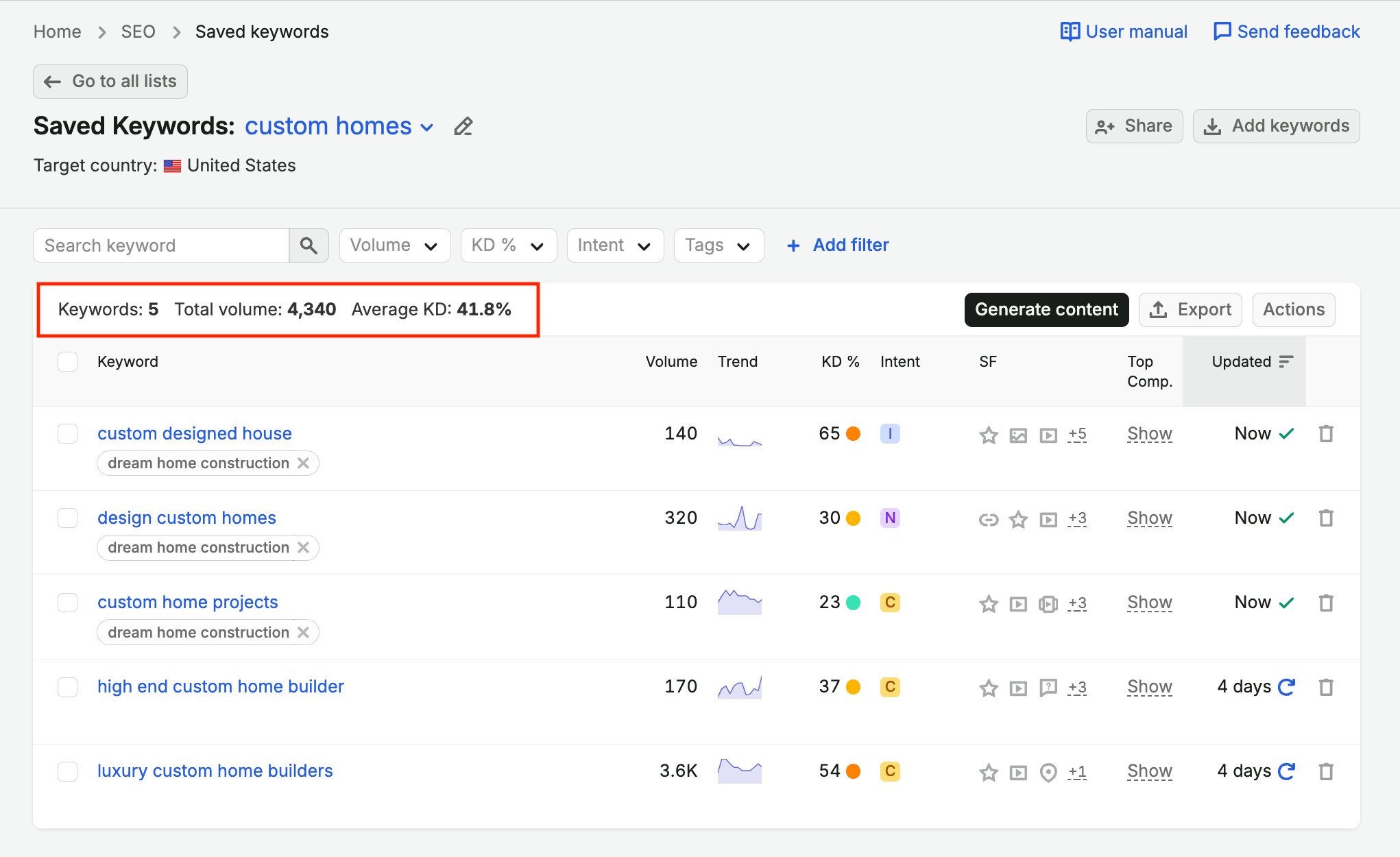
Each keyword has 1 row of metrics:
|
Metric |
Definition |
|
Keyword |
The saved keyword, with its tags and labels below it |
|
Volume |
The average number of monthly searches for the keyword in the target country |
|
Trend |
How the keyword’s search volume changed over the last 12 months |
|
KD % |
Keyword Difficulty: How hard it is to rank in Google's top 10 organic results for the keyword, on a scale from 0 to 100% |
|
Intent |
The purpose behind the search: informational (I), navigational (N), commercial (C), or transactional (T) |
|
SF |
The SERP features that appear in the search results for the keyword. A number such as +5 shows how many more there are. |
|
CPC (USD) |
The average price advertisers pay for a click on an ad triggered by the keyword, in US dollars |
|
Top Comp. |
Top competitors: The domains that rank at the top of the search results for the keyword. Click Show to see them. |
|
Updated |
The date Semrush last updated the keyword's metrics |
To add or remove columns, click Actions and select Table settings.
Filters
Filters narrow the keywords in the list and update the summary. To find a specific keyword, use the search bar.
| Filters | Definitions |
|
Volume |
Shows keywords within a search volume range |
|
KD % |
Shows keywords within a Keyword Difficulty range |
|
Intent |
Shows keywords with the selected search intents |
|
Tags |
Shows keywords with the selected tags or labels, or with No tags. When you select more than 1 tag in Tags, the list shows keywords that have any of them, not only keywords that have all of them. |
|
SERP Features |
Shows keywords whose search results include the selected SERP features. Add it with + Add filter. |
|
CPC (USD) |
Shows keywords within a CPC range. Add it with + Add filter. |
Tags and labels
Tags and labels appear below each keyword. Tags are the words you add to group keywords within a list. Labels appear automatically when you send keywords to another tool:
- Sent to Position Tracking: The keyword was sent to Position Tracking
- Sent for article: The keyword was used to generate an article
Taking action
Shortlist keywords to target
A long list is hard to act on. Combine the Volume and KD % filters to find keywords with enough demand and a realistic chance to rank, then tag them so you find the shortlist again later.
- In KD %, select a low difficulty range
- In Volume, select the search volume range you want to target
- Select the keywords you want to keep with the checkboxes
- Click Add tags, enter a tag, and click Apply
Track rankings for your target keywords
Once you publish content for a keyword, track whether it ranks. Keywords you send get the Sent to Position Tracking label, so the Tags filter shows which ones aren't tracked yet. To send keywords:
- Select the keywords with the checkboxes
- Click Actions > Send to Position Tracking
Keep metrics current
Search volume and difficulty change over time. Check the Updated column before you prioritize keywords, and refresh metrics that are out of date. To refresh metrics:
- To refresh 1 keyword, click the refresh icon in its Updated cell
- To refresh several keywords, select them and click Actions > Update metrics
The Update metrics counter shows how many updates you have left this month.
Frequently asked questions
Keyword data is updated on request. The number of updates available depends on your Semrush plan.
Yes, you can restore keywords you deleted by clicking Undo in the message that appears after you delete them.